
Lab Results, AI Insights and Pre-Checkup Briefs for Clinics
How OptyPeptides handles lab uploads, AI insights, trend charts, draw-by-draw comparison and the pre-checkup brief your team and patients can use before a visit.
Lab results are the center of most peptide and hormone programs
Most peptide and hormone clinics decide what to do next from lab work: IGF-1, testosterone, lipids, glucose, thyroid. Yet in many practices those results still live as PDFs in a folder, retyped by hand or read off the page during the visit. OptyPeptides puts labs, trends and visit preparation in one place on the patient page. This post walks through how each piece works.
Walkthrough video: lab insights and the pre-checkup brief (demo data). Open in a new tab.
Uploading a lab report
Upload a lab report and the work is done for you. Drop in a report from any lab, and OptyPeptides pulls out every biomarker, its value and unit, and the reference range the lab printed. It flags anything out of range and writes an AI insight on the results.
Upload the report. On a patient's page, open Lab Results and click "Upload Lab Report". Choose the file (PDF, JPEG, PNG, HEIC or TIFF), enter the date the blood was drawn, and add an optional title or notes.
Every biomarker is pulled out automatically. Each result lands on the patient's chart with its name, value, unit and the lab's own reference range. Out-of-range values are flagged.
AI insights are written for you. Each report gets an AI clinical insight on that draw, and the patient's holistic insight updates to look across all of their reports.
Patients can also upload reports from the app, and those are flagged so your team knows to review them. Large files upload in the background, so staff can keep working while the progress box finishes. Staff can still type results in with "Manual Entry" when they need to.
Your team stays in control: every report shows a reminder to check extracted values against the original, and a report moves from Pending to Reviewed (or Flagged) only when someone on your team says so.
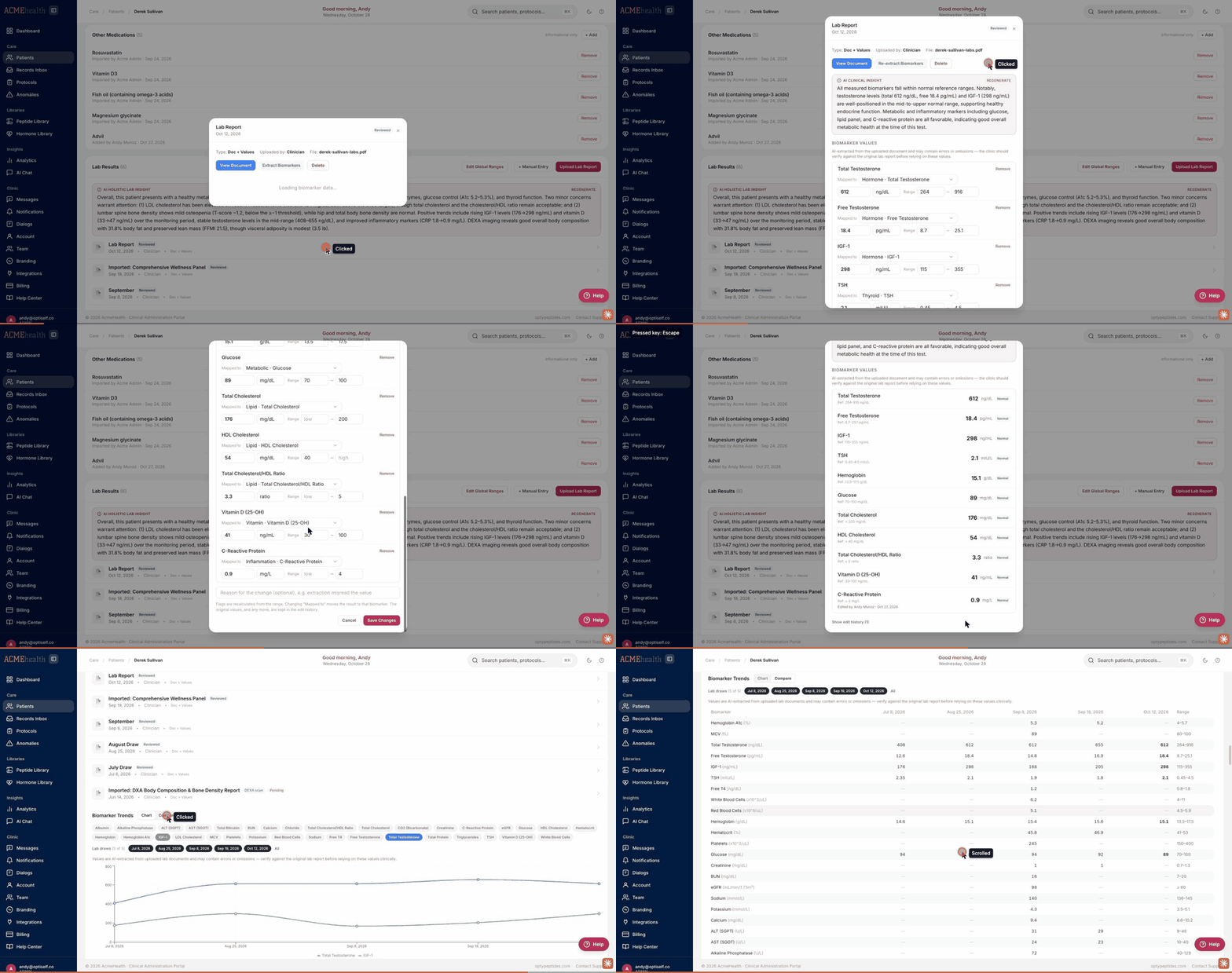
- 01Ranges as the lab printed themA lab's own range is kept as printed, including one-sided ranges such as "less than or equal to 100".
- 02Results with a signA result printed as "<0.5" or ">1000" keeps its sign, and is flagged only when it is clearly outside the range.
- 03Cycle-phase rangesFor estradiol, progesterone, FSH and LH, ranges can follow the phase of the cycle the draw was taken in.
- 04Calculated ratiosWhen a report lists total cholesterol and HDL but not the ratio, the ratio is calculated and marked as calculated. Non-fasting insulin is tracked separately from fasting insulin.
AI insights, for clinicians
Each report can carry an AI clinical insight, a short plain-language read of that draw. A separate holistic insight looks across all of a patient's reports at once and calls out the patterns worth attention, such as a lipid marker that is still above target while hormone markers move in the right direction.
These insights are written for the clinic. They are not sent to patients, and they support your judgment rather than replace it.
Trends and the Compare view
Under Biomarker Trends, pick any biomarkers to chart them over time, and choose which lab draws to include. The chart makes it easy to see whether IGF-1 is climbing, whether testosterone has leveled out, or whether a lipid panel is improving after a protocol change.
Switch to Compare to line the draws up side by side in a table, one column per draw with the reference range alongside. It is the fastest way to answer "what changed since last time?" without opening each report.
The pre-checkup brief
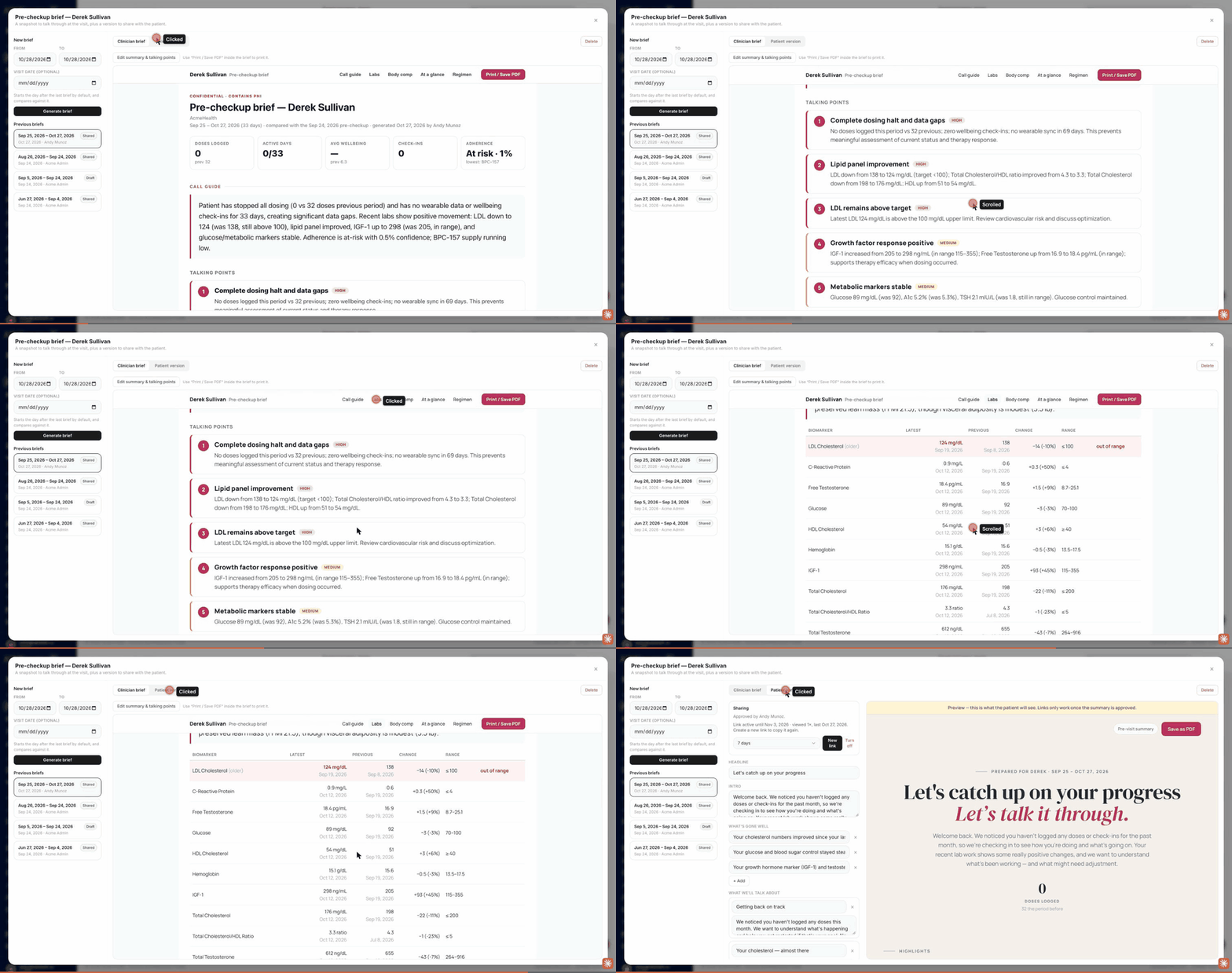
The pre-checkup brief turns the chart into a snapshot to talk through at the visit. Click "Pre-checkup brief" on the patient page, check the date range, and generate. The first brief covers the last 90 days. Later ones start the day after the previous brief and are compared against it.
The clinician brief opens with a call guide: a short summary and ranked talking points, each marked by priority. Below that it shows doses logged, active days, wellbeing, check-ins and adherence for the period, then a labs table with the latest value, the previous value, the change and the range, with out-of-range results called out. It also covers body composition, an at-a-glance view and the current regimen. Staff can edit the summary and talking points before the visit and print or save the brief as a PDF.
The patient brief
A second tab prepares a version for the patient: a headline, a short intro, what has gone well, what you will talk about, and what to do before the visit. Your team edits the wording and chooses whether to include trends, labs and other medications. The numbers come straight from the chart and cannot be edited, so the patient version cannot drift from the record.
Nothing reaches the patient until your clinic approves it. After approval you create a link that lasts 7, 14 or 30 days, send it by text or email, and see how many times it was opened. You can turn a link off at any time.
Where it fits in a visit
- Labs arrive, from your team or from the patient's app.
- Staff review the extracted values and correct anything that is off.
- Before the visit, generate the brief and review the call guide.
- Approve the patient version and send the link ahead of the appointment.
- After the visit, the next draw lands in Trends and Compare against the last.
The aim is a visit that starts from the data instead of spending its first ten minutes finding it.
Frequently Asked Questions
What file types can I upload as a lab report?
PDF, JPEG, PNG, HEIC or TIFF. Patients can also upload reports from the app, and those are flagged for your team to review.
Are the values read from a lab report always correct?
No. Values are read automatically as a draft and may contain errors, so staff should check them against the original report. Clinicians can edit any value, unit, range or biomarker match, and the edit history is kept.
Do patients see the AI insights?
No. AI insights are written for the clinic and are not sent to patients.
What is in the pre-checkup brief?
A call guide with ranked talking points, activity and adherence for the period, a labs table with the latest value, previous value, change and range, body composition, and the current regimen.
Can patients see their pre-checkup brief?
Only a patient version your clinic has edited and approved. You send it as a link that lasts 7, 14 or 30 days and can turn off at any time.
See how OptyPeptides handles peptide protocol management
OptyPeptides is purpose-built for clinics running peptide therapy programs. Designed to support HIPAA-compliant use, white-labeled, and built to scale with your practice.
Request a Demo